
Using Calendar Feeds
You can view your study’s timeslot schedule on an external calendar by generating a calendar feed. Access the calendar feed page for your study using the Calendar Feed button on your study’s timeslots page:

There are two types of feeds the system can create for you depending on your preference: All Timeslots & Only Timeslots with Signups:
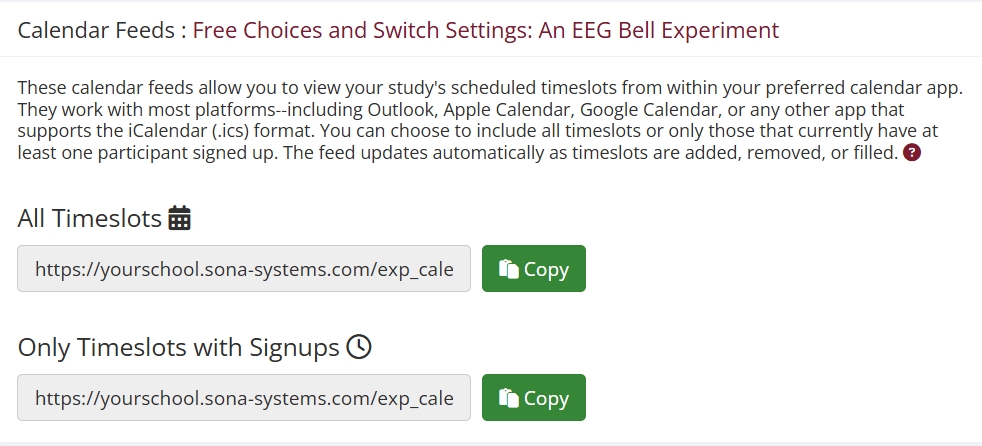
Selecting all timeslots will generate a feed for your external calendar application (e.g., Google Calendar, Apple Calendar, or Outlook) that includes all timeslots. Once you have subscribed to this feed using your calendar application or platform, it will update automatically when you make changes (e.g., adding a new timeslot). However, these changes may not be immediately reflected in your calendar feed.
The Only Timeslots with Signups option will add timeslots that have slots filled (i.e., at least one participant has signed up for that timeslot). As participants sign up for your study, the feed will update to reflect these changes by displaying those timeslots which now have signups. Again, please allow for a delay between the time changes are made and when they are reflected in the feed.
For additional details and help, please see Schedule, Subscribe, and Sync: Introducing Study Calendar Feeds.