
Managed Paid Studies:
Track and Facilitate Participant Payments with Sona
This new feature allows researchers to easily track participant earnings and manage payments within the Sona platform. Payments are still made through your preferred methods. We’ve just made it a lot easier.
A New Way to Pay Participants

The Batch Payment Process
Setup: Before the Payment Process
This is an optional feature. Enabling this feature allows you to add studies with new compensation options:

Selecting “Managed Paid” allows you to create batch payments for your study. You must also select a preferred payment provider:

Payment Process
Mark Earnings in Sona
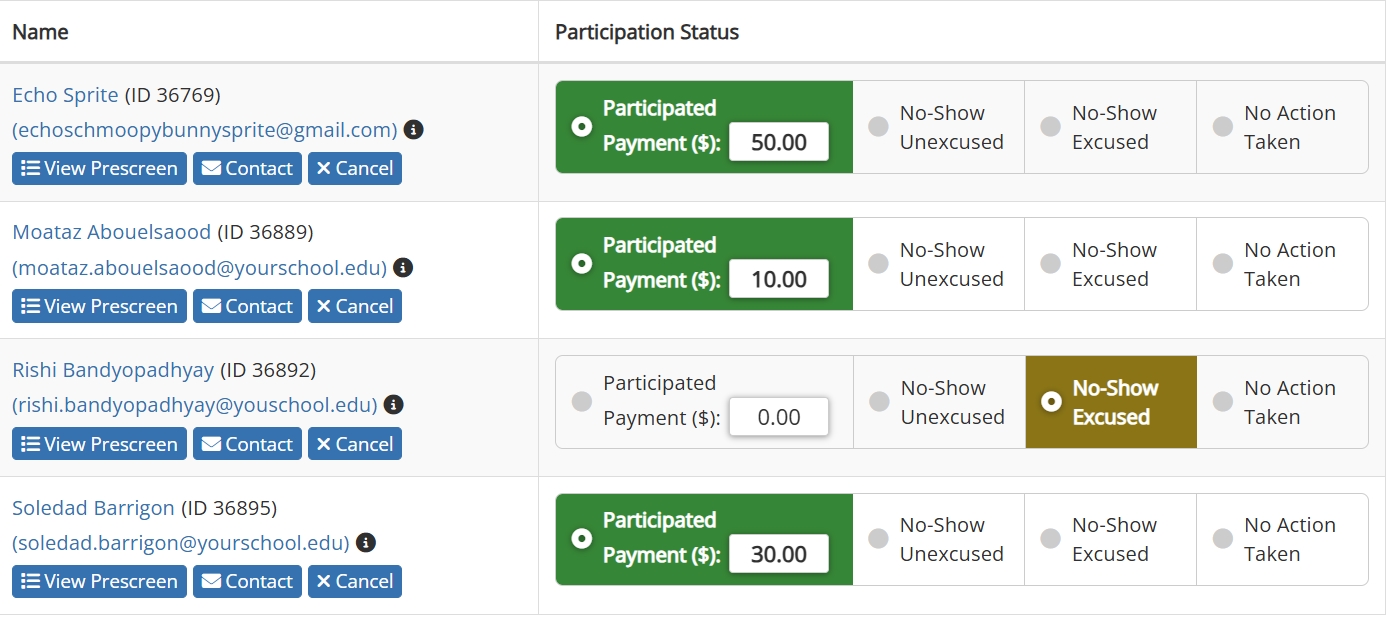
Starting a payment batch is as easy as marking participation, and begins the same way. Simply indicate who showed up for a study’s timeslot and indicate how much they earned.
Generate Batch Payment File in Sona
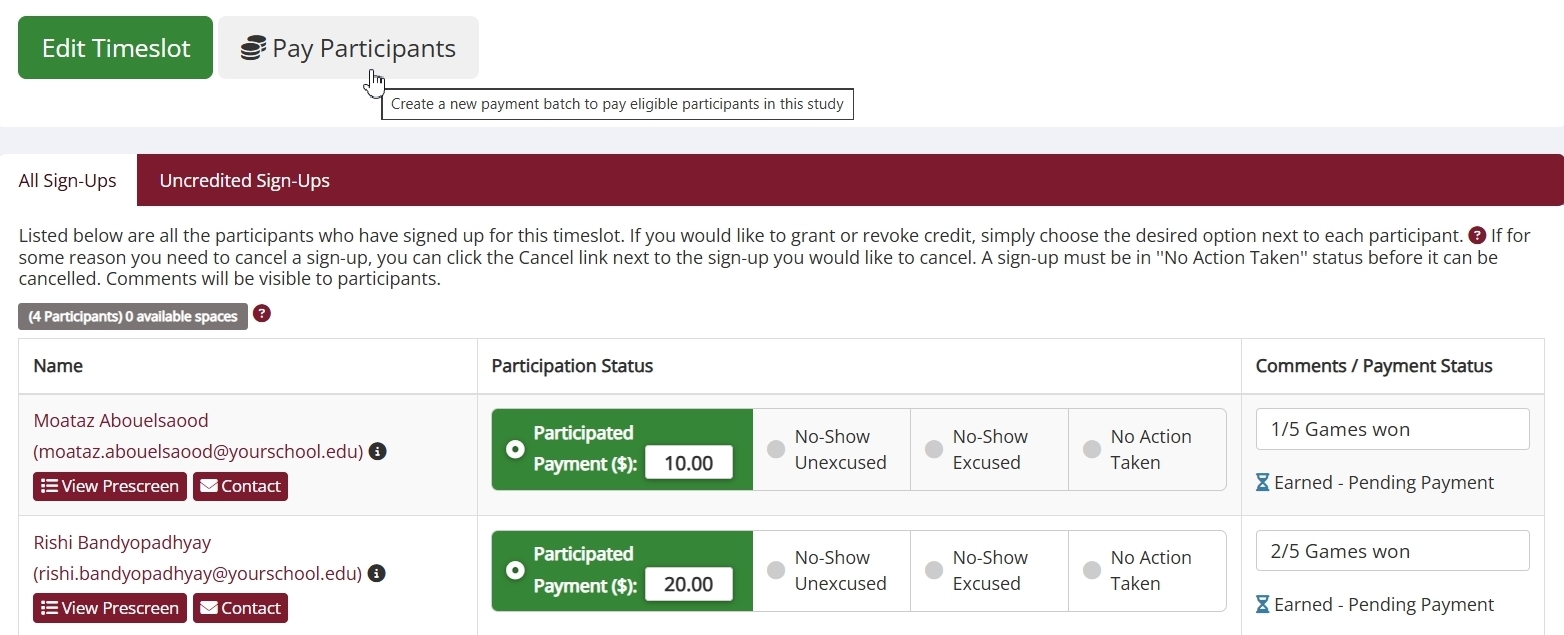
Once you change a participant’s status to “participated” and indicate the amount earned, updating the timeslot changes the participant’s status to “Earned-Pending Payment”. To continue with the payment process, click on the “Pay Participants” button as shown below:
Upload Batch File to your Provider
Once you have marked participation and set the payment amounts, the next step is to create a downloadable file for easy upload to your Amazon or PayPal account:

If you pay in cash or don’t use a provider, the Cash option generates a file you can use for manual tracking in a spreadsheet application (such as Excel or Google Sheets) or for printing as a payment checklist.
Please note that the uploading process does not take place in Sona. Sona facilitates the process creating a downloadable file formatted specifically for the payment method you chose (Cash, PayPal, or Amazon Gift Card). This makes it easy to turn your batch payment file into Amazon gift cards or upload to your PayPal account, but you will not be paying through Sona.
Mark Batch as Paid
Finalizing the payment process is quick and easy. Once you have paid participants through Cash, PayPal or Amazon Gift Card, simply go back to the payment batch and click the Mark as Paid button:

This important step isn’t just for your sake. In addition to creating a clear record of when the payment process was finalized, clicking this button also lets participants know you made the payment!