
External Study Credit Granting with SurveyMonkey
With SurveyMonkey, note that some of the features used within SurveyMonkey may vary depending on your subscription level with SurveyMonkey. In most cases, you will need to have their Premier package in order to make use of the Survey Completion Redirect feature necessary for study credit granting to work properly.
While these instructions refer to “credit granting”, they work for both credit and paid studies. For paid studies, participation will be marked (instead of credit granted) just like with any other paid study.
Here are the basic steps, which are subject to change (since the product is controlled by SurveyMonkey):
Step 1: Change your Study URL on your Sona Systems site
On your Sona Systems site, change the Study URL so it includes ?c=%SURVEY_CODE% in the URL. So if the SurveyMonkey URL is:
-

-
(URL Text:
https://www.surveymonkey.com/r/yoursurvey)
then change it to:
-

-
(URL Text:
https://www.surveymonkey.com/r/yoursurvey?c=%SURVEY_CODE%)
Step 2: Set the Collect Responses method to Share a Link
In SurveyMonkey, click on the Collect Responses tab:

If you haven’t already selected a collection method (i.e., if this is the first time clicking on this tab for this survey), you will see your study’s URL in the Share a Link box:
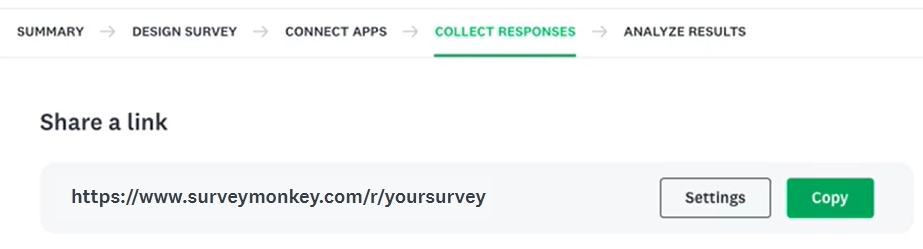
If this is what you see, proceed immediately to step 3 below.
If you don’t see this, or had previously set a different collection option, change your collect responses method by clicking on the Share a Link option under More Ways to Send:
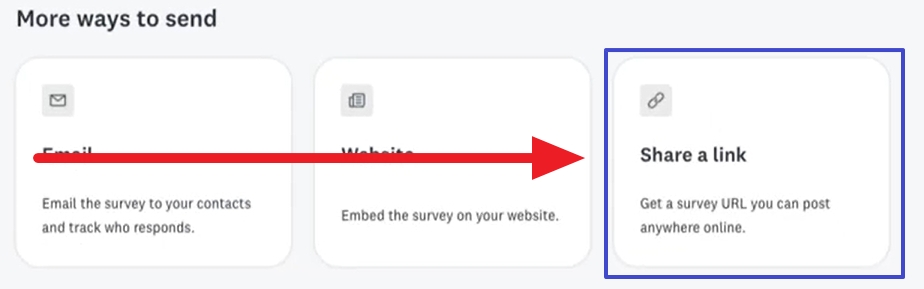
Step 3: Edit Survey End Page settings to Redirect to a url
To complete this step, you will need to first visit your study’s information page in Sona and copy the SurveyMonkey Completion URL to your clipboard:
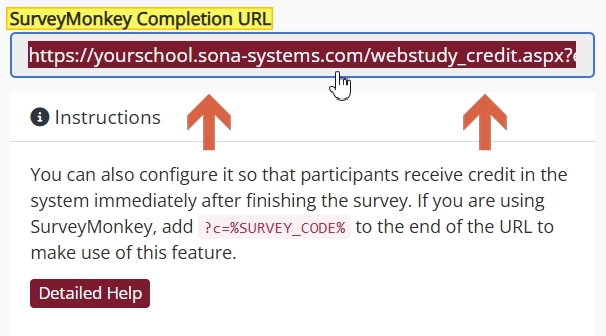
Next, return to your study’s Collect Responses page in SurveyMonkey. Click the Settings button to the right of the Share a Link URL textbox:
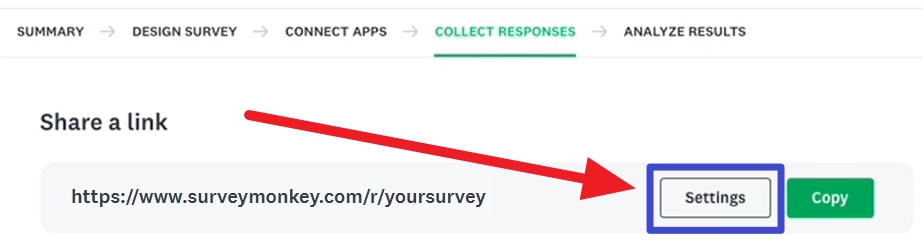
Select the Survey End Page option:
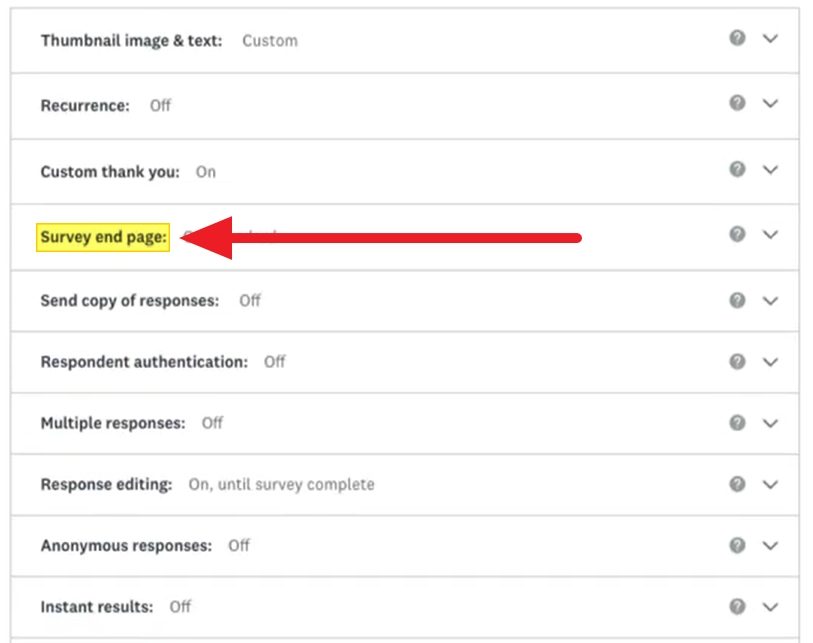
From the Survey End Page options, select “Redirect to a URL”, then paste the SurveyMonkey Completion URL you copied into the textbox:
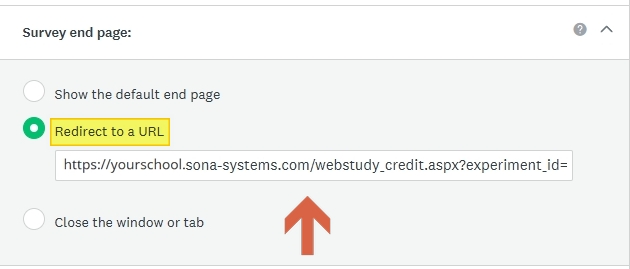
That’s it! Participants will now be redirected back to Sona upon completion of your survey with their participation marked automatically using the anonymous ID code passed to Sona via the redirect URL.
These features are described on SurveyMonkey’s site at the following URLs: