
External Study Credit Granting with FaceReader Online
While these instructions refer to “credit granting”, they work for both credit and paid studies. For paid studies, participation will be marked (instead of credit granted) just like with any other paid study.
Here are the basic steps, which are subject to change (since the product is controlled by FaceReader Online):
Step 1: Change your Study URL on your Sona Systems site
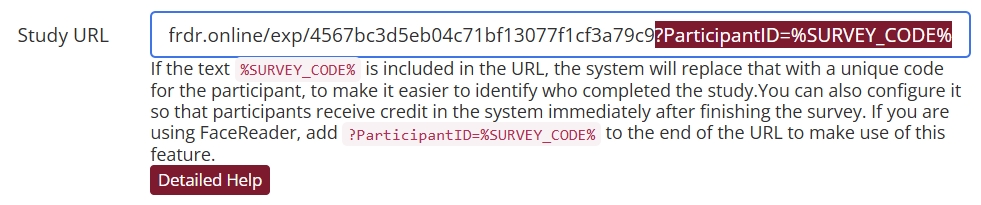
On your Sona Systems site, change the Study URL so it includes ?ParticipantID=%SURVEY_CODE% in the URL. So if the FaceReader Online study url is:

then change it to:
Step 2: Copy the FaceReader Redirect url from Sona to FaceReader Online’s Experimental Setup page
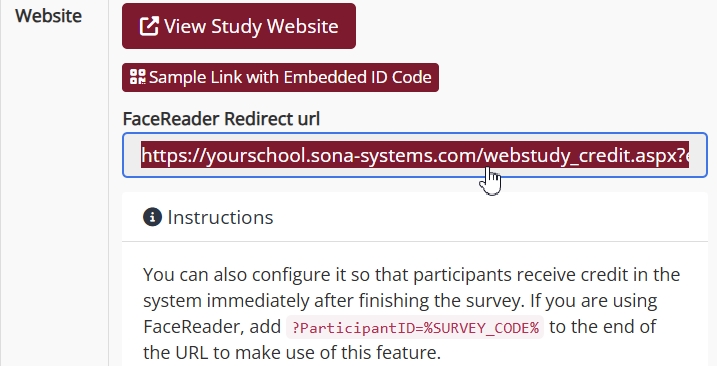
Copy the FaceReader Online url from the Study Information panel in Sona:
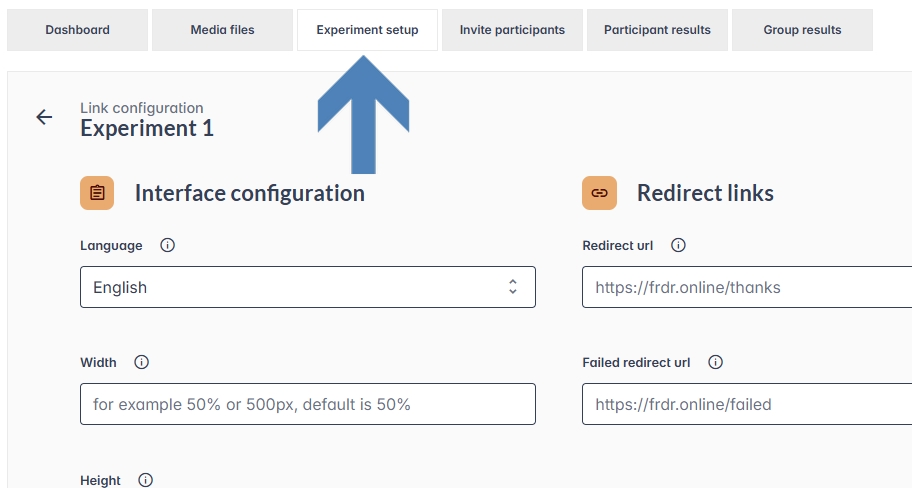
To use this link, first sign in to FaceReader Online. Once you are logged in, open your study’s Experimental setup tab on FaceReader Online to view the link configuration settings:
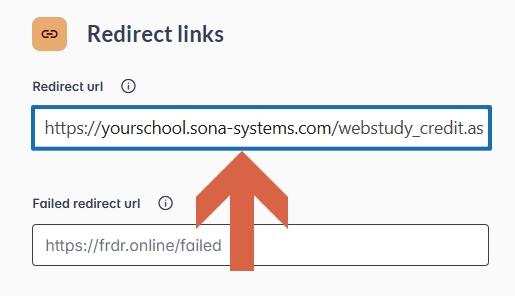
Next, paste the copied URL into the Redirect url textbox:
Step 3: Configure Redirect options
Once you have pasted the Redirect url, you will need to configure the redirect options for your FaceReader Online study. When configured correctly, the “Add the Participant ID” option must be “ON”, while the other two options are not required:
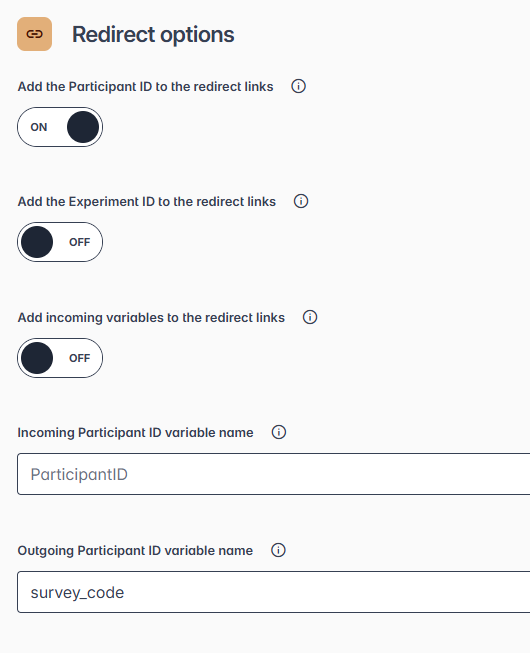
Finally, add “survey_code” to the “Outgoing Participant ID variable name” input box and make sure the “Incoming Participant ID variable name” is ParticipantID (as shown in the image above).
That’s it! This return link will redirect participants back to Sona and automatically grant credit (or mark participation.)