

NOTE: This feature is only available with Advanced editions or above
Site Settings & Configuration
(shadowed text)
What is the Managed Paid Feature?
The Managed Paid feature allows researchers to add managed paid studies. Managed paid studies include a built-in payment tracking and recording component that their unmanaged counterparts do not possess. Enabling the Managed Paid features offers easier ways for researchers to pay participants as well as a more comprehensive integration of the payment process overall.
Researchers can find an introduction and guide to using managed paid studies in this post, which covers everything from adding a managed paid study to creating and downloading batch payment files.
While researchers may benefit from the current post, because it covers certain options in greater detail, it is intended primarily for administrators. It is intended as a guide to site configuration and settings for the Managed Paid feature, rather than as a guide to using managed paid studies.
We can break down this guide into the following topics. First, we’ll look at the prerequisites your site needs to enable the Managed Paid feature. Next, we’ll look at required settings and the configuration options you have here. With the site and setting requirements out of the way, we’ll finish off by looking at optional settings for the Managed Paid feature.
Let’s get started.
Site Requirements
The first requirement is simple and you’ve already seen it: This feature is only available if you have an Advanced subscription or higher.
The next requirement is a system setting, but not your typical one. Some system settings can’t be changed even by administrators. We configure these settings based on your institution’s requests when we set up your site for you. One such setting is the Payment Feature Enabled Setting:

Although you can’t change this setting, you can still see it in System Settings. If you see “Yes” next to the setting (as in the image above), you’ve met this requirement. If you see a “No”, don’t despair! Although it means you can’t currently use managed paid studies, it’s not the end of the world. Contact our support team and we can enable the Payment Feature for you.
That covers the pre-requisites! Next, we’ll look at the settings for payment methods, a required component of the Managed Paid feature.
Payment Methods: Defaults and Options
Managed paid studies are paid studies. Unlike with unmanaged paid studies, where anything related to how participants are paid is entirely outside of the Sona system, managed paid studies require a payment method. The options may be found in system settings.
Default Payment Method Options
There are two payment methods, each with a corresponding system setting: Cash and Tremendous. Both will be enabled by default. This means that, unless you change the settings, researchers will be able to add studies using either payment method.
If you want researchers to use only one of these methods, you can disable either the Tremendous or the cash payment method in system settings:
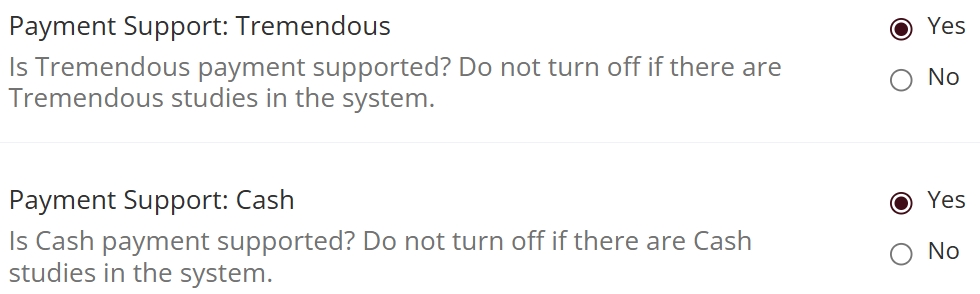
Please keep in mind that a payment method is a requirement to use the Managed Paid feature, so at least one of these payment methods must be enabled.
To Limit or not to Limit: Total Earnings Settings
With payment method settings done, we’ve finished with required settings. From here on out, the settings we’ll discuss are optional.
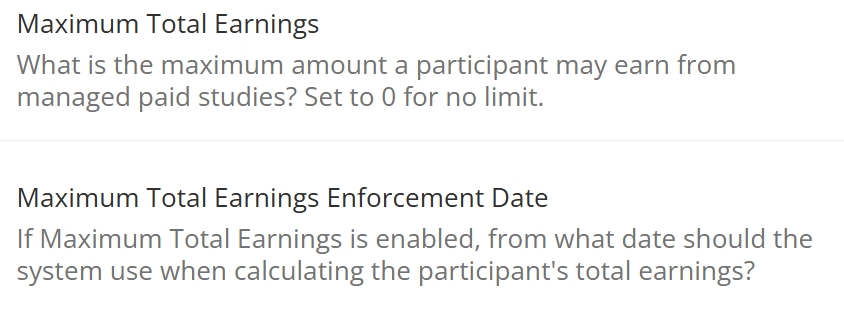
The first two settings we’ll discuss are closely related. They are the Maximum Total Earnings and the Maximum Total Earnings Enforcement Date settings:
Maximum Total Earnings
By itself, the Maximum Total Earnings setting is both extremely simple and somewhat limited. It works similarly to (and indeed is modeled on) the Maximum Credit Limit setting. Enter in a value, and the system will ensure that participants can’t earn more than that value:

The system calculates totals based on timeslots. This way, it not only includes the amount a participant will be paid for a study they’ve signed up for (but haven’t yet participated in), it also prevents participants from signing up for studies that would bring them above the maximum total allowed.
If your participant pool refreshes on a regular basis, with old participants leaving and new participants joining each semester or year, then the Maximum Total Earnings may be all you need to ensure participants don’t earn more than the maximum allowed while also not discouraging existing participants from signing up for studies.
Paid participant pools, however, tend to operate on longer and more irregular cycles, with participants staying for several years or more. In this case, using the Maximum Total Earnings by itself is akin to telling participants there’s no point in staying once they’ve earned that amount. That’s why this setting is designed to work with another: the Maximum Total Earnings Enforcement Date.
Maximum Total Earnings Enforcement Date
The Maximum Total Earnings setting has multiple potential benefits, but it was designed together with the enforcement date with one purpose in particular: Tax reporting.
For example, in many places you do not need to report participant payments unless the total amount paid exceeds some fixed value, such as $600 or $2,000. If your policy is to keep total payments to any given participant below that amount, then the Maximum Total Earnings setting together with the Maximum Total Earnings Enforcement Date make adherence to such a policy easy.
For simplicity, let’s assume that your fiscal and calendar years are the same. That is, both begin on January 1st of each year. Also suppose that you want to limit the amount a participant can earn to $2,000 per year. Because participants may remain in your pool for many years, you also want to make sure this limit is only a per-year limit.
How do you use Sona’s Managed Paid feature to help keep participant earnings below the cutoff? Simple: On or after January 1st of each year, you set the enforcement date to be January 1st of that year:
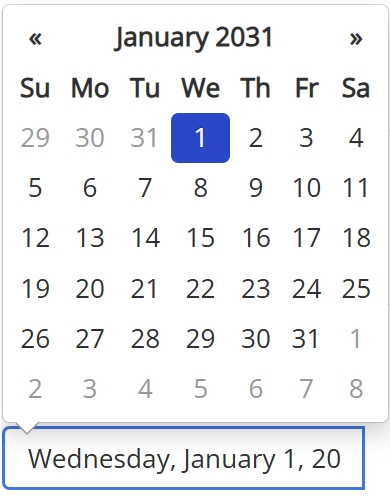
Once that enforcement date is set, the system will start calculating participant totals based on that date.
Please keep in mind that the system uses the timeslot date when calculating totals. If a participant isn’t paid until after the enforcement date, but the timeslot occurred before it, the system will use the timeslot date, not the “Mark as Paid” date.
Benefits Beyond Tax Breaks and Reports
The primary reason for the Maximum Total Earnings and the Maximum Total Earnings Enforcement Date settings is tax reporting. It is not, however, the only possible benefit.
After all, if your department, lab, institute, etc., has a certain amount budgeted towards participant payments, these settings provide any easy way to help enforce that budget.
There’s another, much more subtle possible benefit as well. Although it isn’t as much of a problem in participant pools or panels (compared to crowdsourcing participants), there is always the possibility that some participants will be interested only in maximizing earnings and will sign up for as many studies as is possible based on this goal. This can create several problems.
For one, these participants may be taking spots away from those for whom performance matters. Instead of an individual who signs up because the study seems interesting or even because they are willing to participate fully, timeslots end up going to participants who would rather e.g., take the survey or complete laboratory tasks as quickly as possible (not caring much about instructions or performance).
Even if participants trying to maximize earnings perform on average as well as any other, they can bias data in other, more subtle ways. Their goal to maximize earnings biases the sign-up process as well as how representative any given sample is of the overall participant pool (let alone the population in question).
Placing a maximum on the amount that can be earned, and letting participants know about this maximum, can discourage participants from focusing on earnings and encourage them to pick the studies they participate in more carefully.
Allow Variable Payment?
There is one more setting related to the Managed Paid feature—Variable Payment Support:
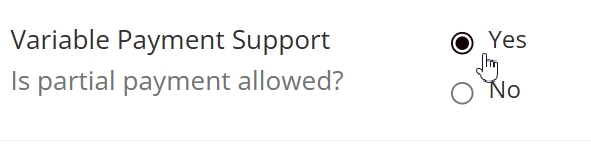
The Variable Payment Support setting determines whether researchers can vary the amount paid to participants in timeslots from the amount specified in their study’s information page. As a simple example, suppose researchers on your Sona site sometimes run studies that can pay up to a certain amount (e.g., participants can earn more or less depending on how many rounds of a game they win or lose).
With Variable Payment Support enabled, researchers can set a default amount participants will earn on their study’s information page. However, as the name suggests, this amount is merely the default. Researchers will enter in the actual amount earned when they mark participation in timeslots.
With Variable Payment Support disabled, the default amount becomes the fixed amount. Researchers cannot make changes to payment amounts in timeslots.
For more details, please see this post on handling managed paid studies for researchers.
Closing Comments
This concludes our quick guide to setting up your site for the Managed Paid feature. For more information on how managed paid studies work in practice, please see our post on handling managed paid studies for researchers.
We will also provide more information on payment methods in two posts specific to each of the two payment method options. You will find links to both posts here when they become available.
Until then, feel free to make sure your site is ready for the Managed Paid feature and start thinking about the best configuration for your site!
Bottom Page Text