
External Study Credit Granting with Open Lab
While these instructions refer to “credit granting”, they work for both credit and paid studies. For paid studies, participation will be marked (instead of credit granted) just like with any other paid study.
Step 1: Configure the Study URL in Sona
First, you must copy your study’s URL from Open lab. Open the study, go to Invitations → Public links, and copy the Study link to your clipboard:
-
https://app.open-lab.online/studies/ABCDE
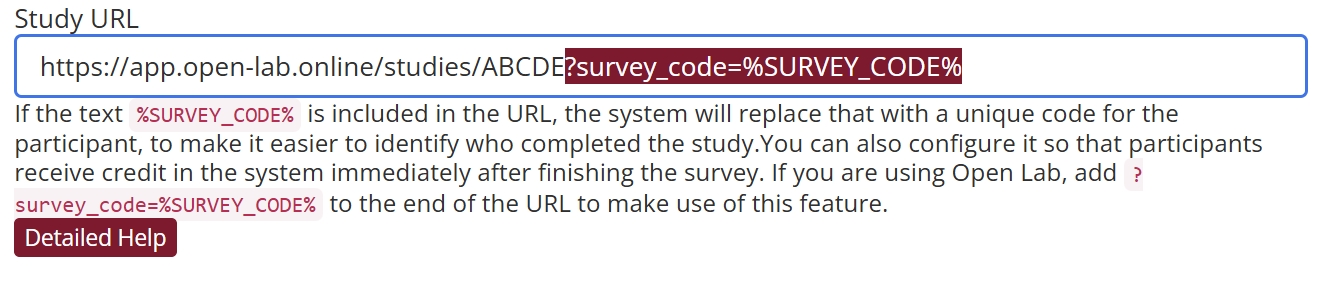
Once the URL from Open Lab is copied to your clipboard, open another page to your Sona site and go to your study’s Change Information Page. Scroll down to the Study URL section, and paste the copied link into the input box:

You will need to add the parameter “survey_code” that Sona will pass to Open Lab along with the participant ID code. To do this, append the following to your study’s URL in Sona:
-
?survey_code=%SURVEY_CODE%
When a participant clicks on your study link in Sona, the system will replace %SURVEY_CODE% with the participant’s anonymous ID number. The ?survey_code= syntax tells Open Lab to make the parameter “survey_code” equal to the ID number.
Once finished, your study URL should look like this:
Step 2: Copy Completion URL in Sona
Return to the Study Information page in Sona. Copy the Open Lab Completion URL to your clipboard.
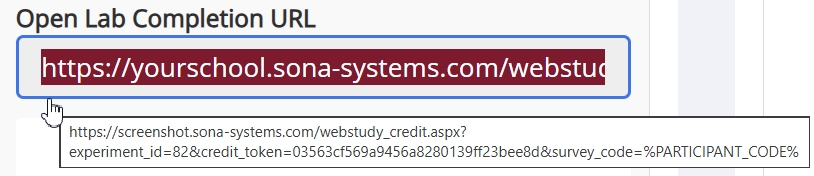
You will need to use this link in Open Lab to complete the next steps in the integration process.
Step 3: Add a Redirect Component to your Open Lab Study
Add a redirect component to your study:
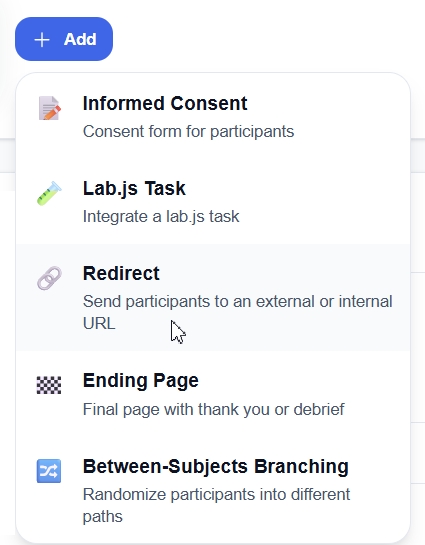
Please ensure that this is the final component of your study.
Step 4: Add the Sona completion URL to your Open Lab Study
After adding the redirect component, click on the option to “Paste a completion URL” in Open Lab, then paste the URL you copied from Sona:
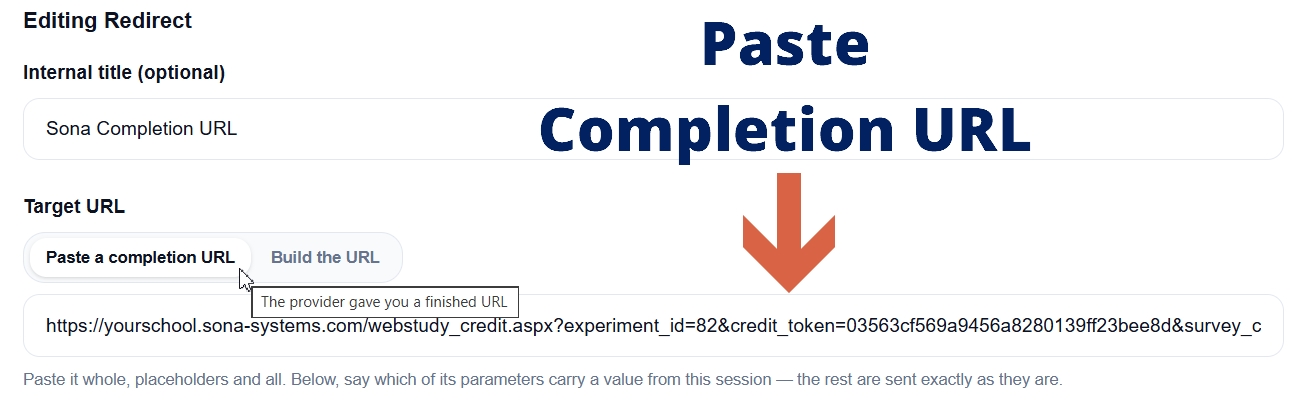
That’s it! You have successfully configured your Sona study for integration with Open Lab.
Additional Information
For additional information, please see Open Lab’s section on Integration with Sona Systems.